
First of all I really like WP team themes. Starting from twentyten all through till twentyseventeen. The WordPress themes are simple, fast, very well SEO optimized and always updated. Of course there are hundreds or even thousands really good WordPress themes around and you can find really great solutions but for a beginner the themes of the developers team are great start.
A lot of people (especially the newbies) do not like simple themes. At the beginning I spent hours and hours searching for “the best” theme for my new project. The truth is simple – if you want the best for your new project, you have to customize.
In this article I’ll show you how to add logo to your Twentyseventeen child theme with few simple steps.


The logo of the website is not just some simle image. The logo is your identity and no matter if you will hire someone to do it for you or will try to do it yourself, you have to carefully choose the theme, colors and the main idea. I found one very good article for the concept of logo design – 25 logo design tips from the experts.
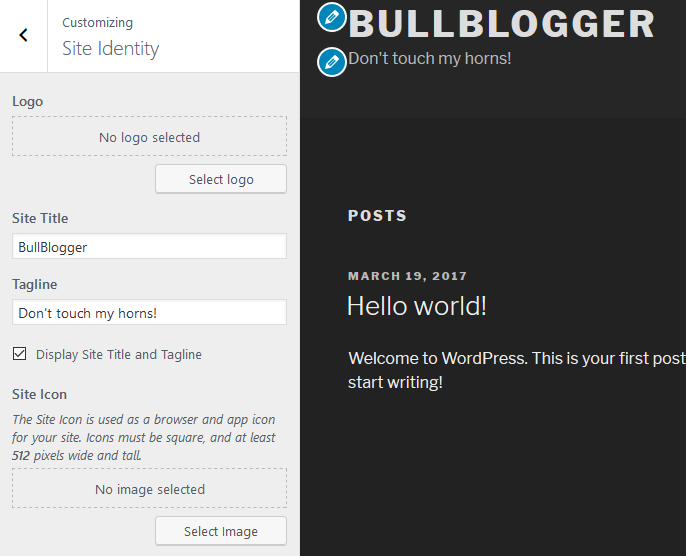
When the chosen image loads WordPress will offer to crop the image. You can drag the dotted line in order to choose which area to keep or you can skip cropping from the button in the bottom right corner.

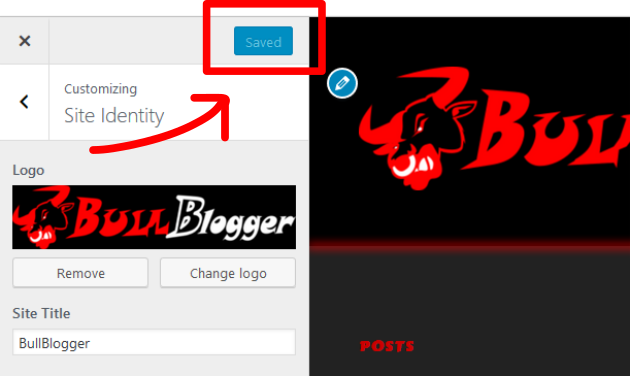
After all you’ll see how your logo will look like in the preview. If you are satisfied just save the changes from the button above.
That’s all!